Approving Production
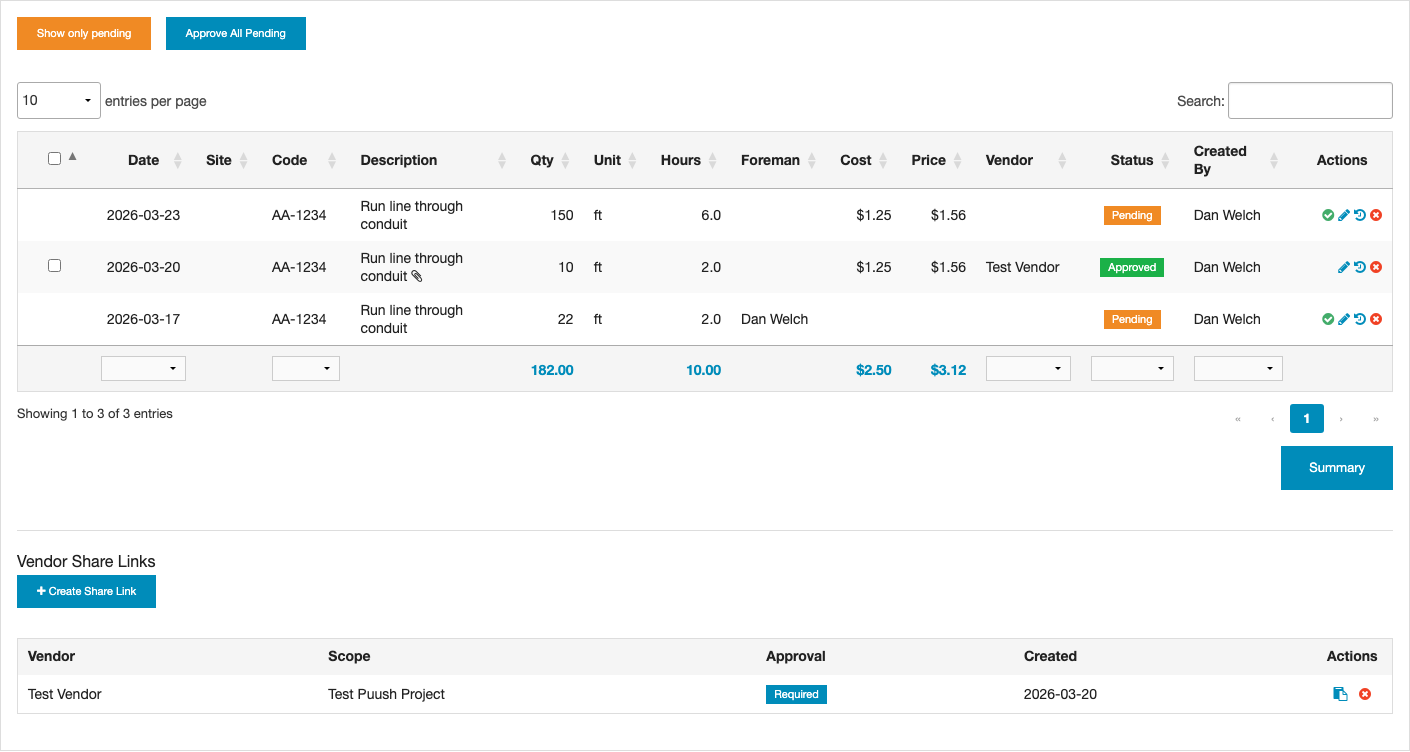
Production records can require approval before they count toward goals and are available for conversion to pricing. This is especially useful when vendors submit production through share links.
How Approval Works
When a vendor share link is configured to Require Approval, any production submitted through that link starts in a Pending state. Pending production:
- Appears in the production table with a "Pending" status badge
- Is excluded from goal progress calculations
- Cannot be converted to pricing sheets
- Can be approved or rejected by users with Manage permission
Production logged by internal users (not through a vendor share) is automatically approved — unless the project has the Require Production Approval setting enabled (see below).
Project-Level Approval Requirement
You can require approval for all production on a project, not just vendor submissions:
- Open the project and go to Settings.
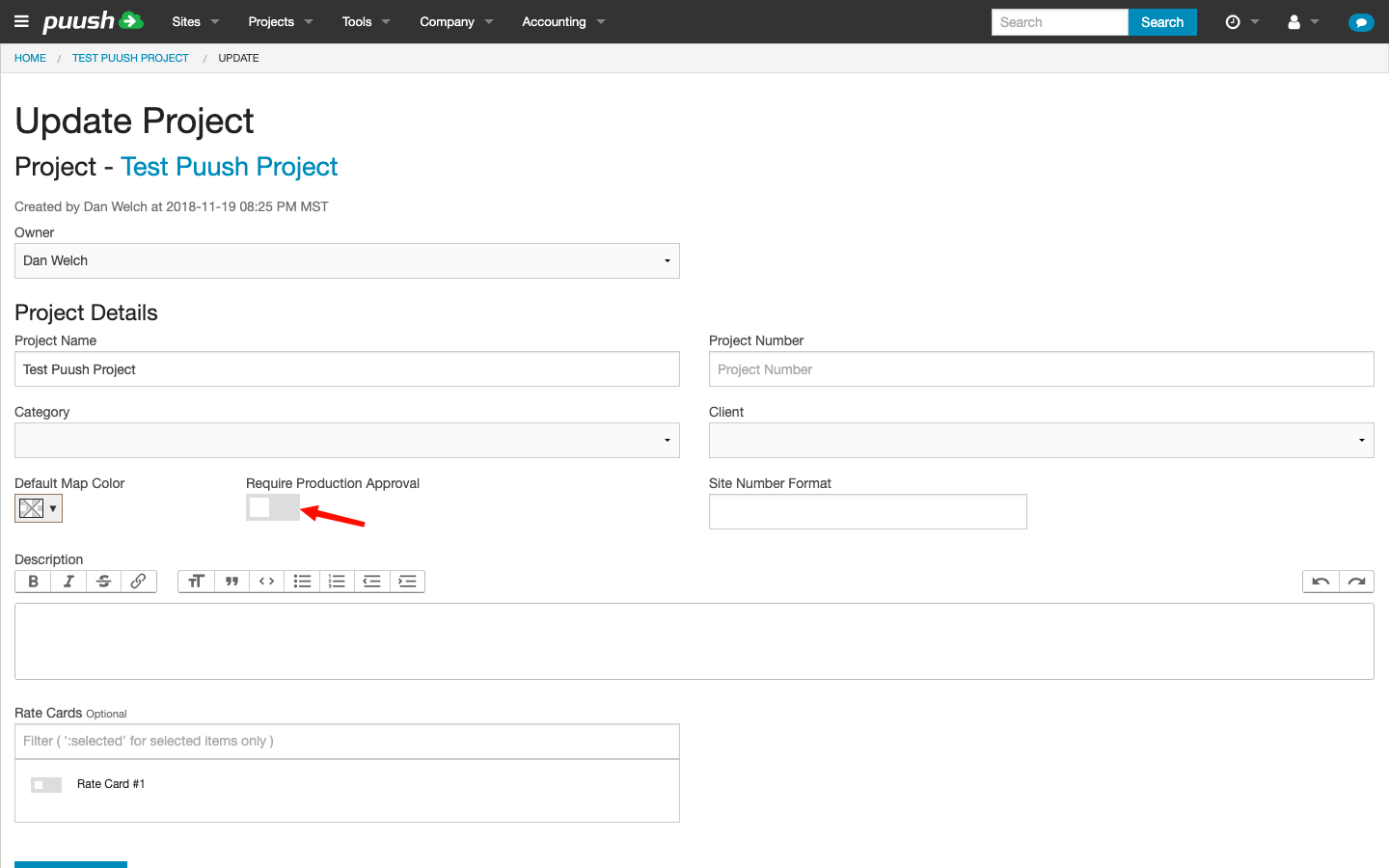
- Toggle on Require Production Approval.
When enabled, every production record logged on that project — whether by internal users or vendors — starts in a Pending state and must be approved by a user with Manage permission.
Filtering Pending Records
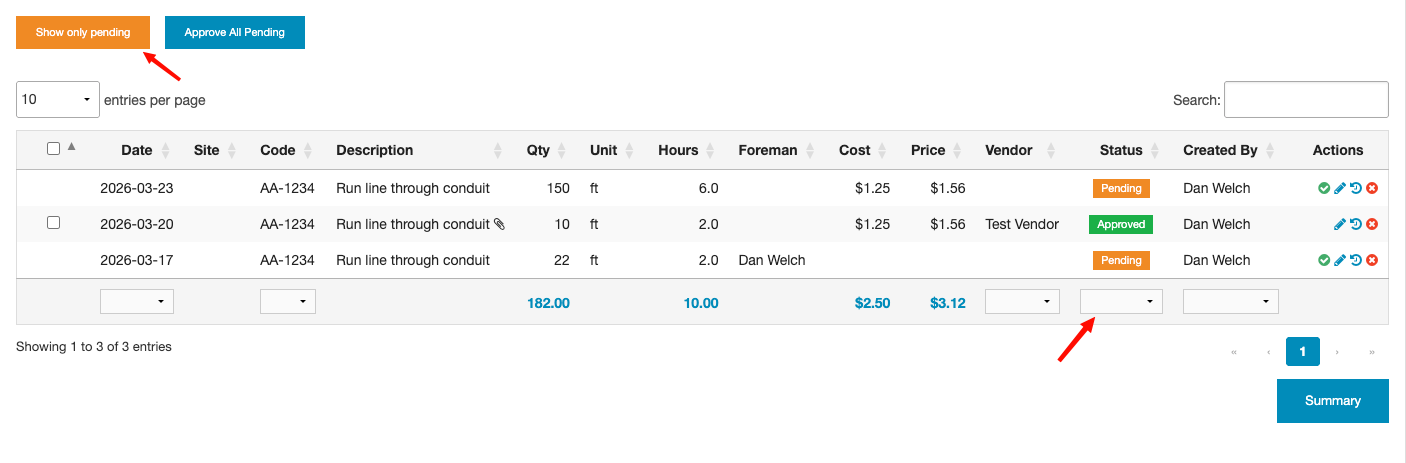
To view only records awaiting approval, click the Show only pending button or use the status filter in the production table to show Pending records. This makes it easy to review a batch of vendor submissions.
Approving a Single Record
- Find the pending record in the production table.
- Click the approve (checkmark) button in the Actions column.
- The record's status changes to Approved and it immediately counts toward any matching goals.
Bulk Approving All Pending Records
If you want to approve all pending records at once:
- Click the Approve All button above the production table.
- Confirm the action in the dialog that appears.
- All pending records are approved at once.
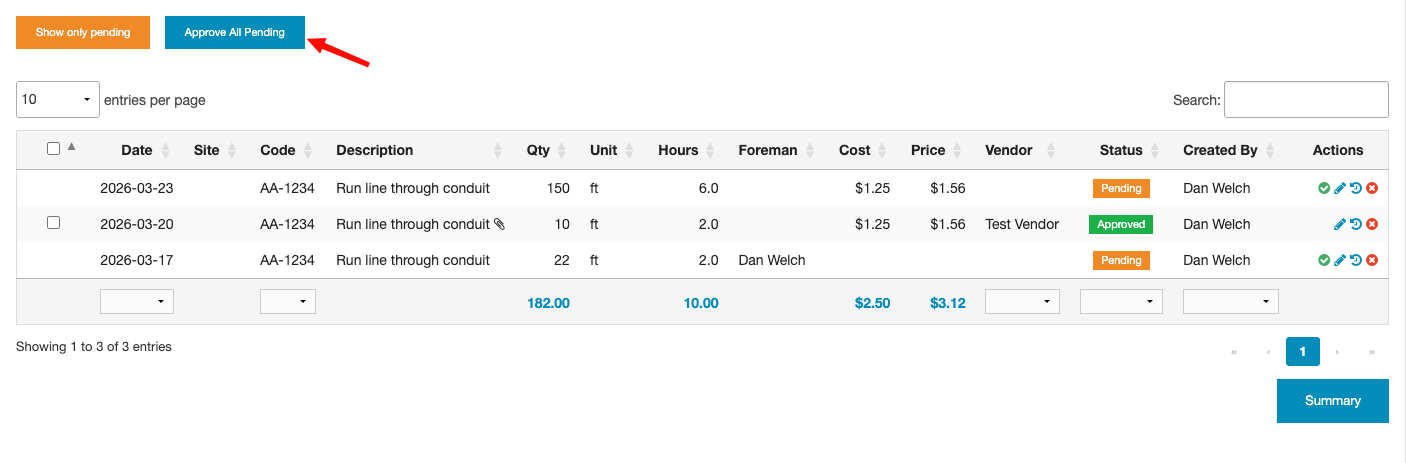
Bulk approval applies to all pending records for the current project or site, not just the records visible on the current page. Review pending records before approving in bulk to ensure there are no entries you want to reject.
Rejecting Vendor Submissions
If a vendor submission is incorrect or should not be counted:
- Find the pending record in the production table.
- Click the reject (x) button in the Actions column.
- The record is deleted.
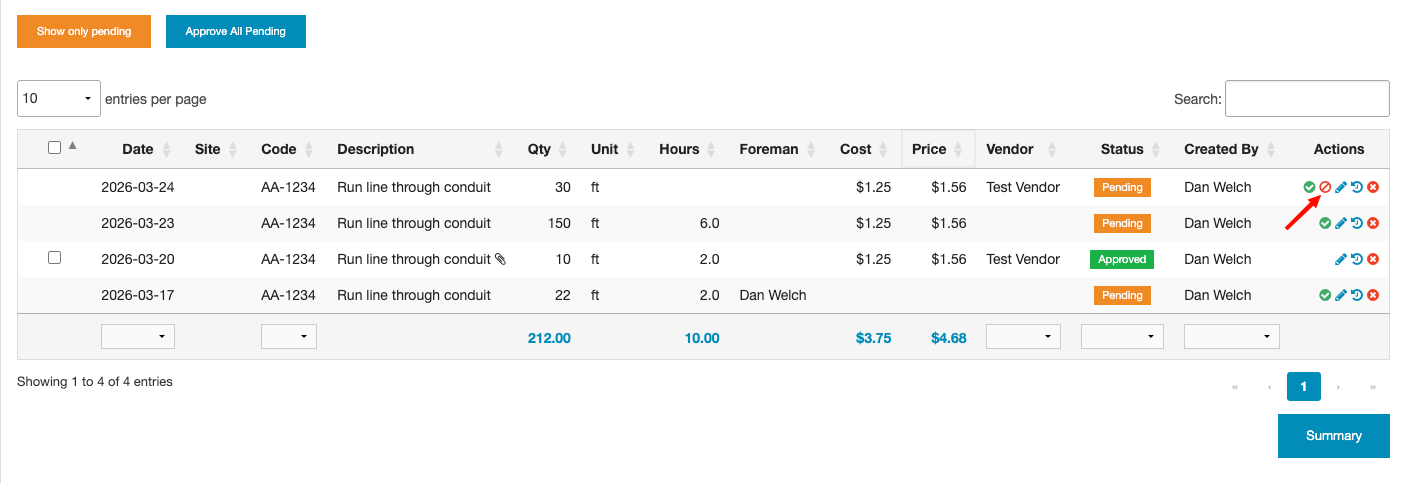
Rejecting a vendor submission permanently deletes the record. If the vendor needs to resubmit, they can create a new entry through their share link.
You can subscribe to automatic notifications when production is submitted, approved, or rejected. See Notification Subscriptions.