Vendor Production Sharing
Vendor share links let external vendors log production without needing a Puush account. You create a magic link scoped to a specific project or site, and the vendor uses it to submit their work.
Creating a Share Link
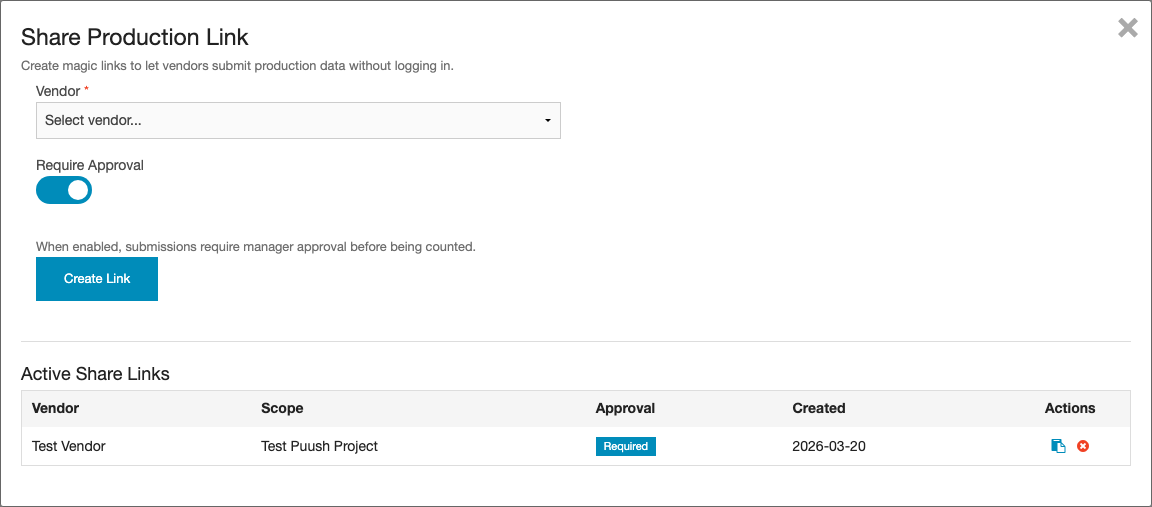
- Navigate to the Production section on a project or project site.
- Click Share Production (requires Manage permission).
- In the share modal, fill in:
- Vendor — Select the vendor who will use this link.
- Deliverable — (Optional) Scope the link to a specific deliverable.
- Require Approval — Toggle on if you want to review submissions before they count. Toggle off to auto-approve.
- Click Create Share.
Copying and Sending the Link
After creating a share, the link appears in the active shares list. Click the copy icon to copy the URL to your clipboard, then send it to the vendor via email or any other channel.

Managing Active Shares
The share modal shows all active share links for the current project or site. For each share you can see:
- The vendor name
- The deliverable scope (if any)
- Whether approval is required
- A copy link button
- A delete button to revoke the share

Deleting a share link immediately revokes access. The vendor will no longer be able to submit production through that link.
What Vendors See
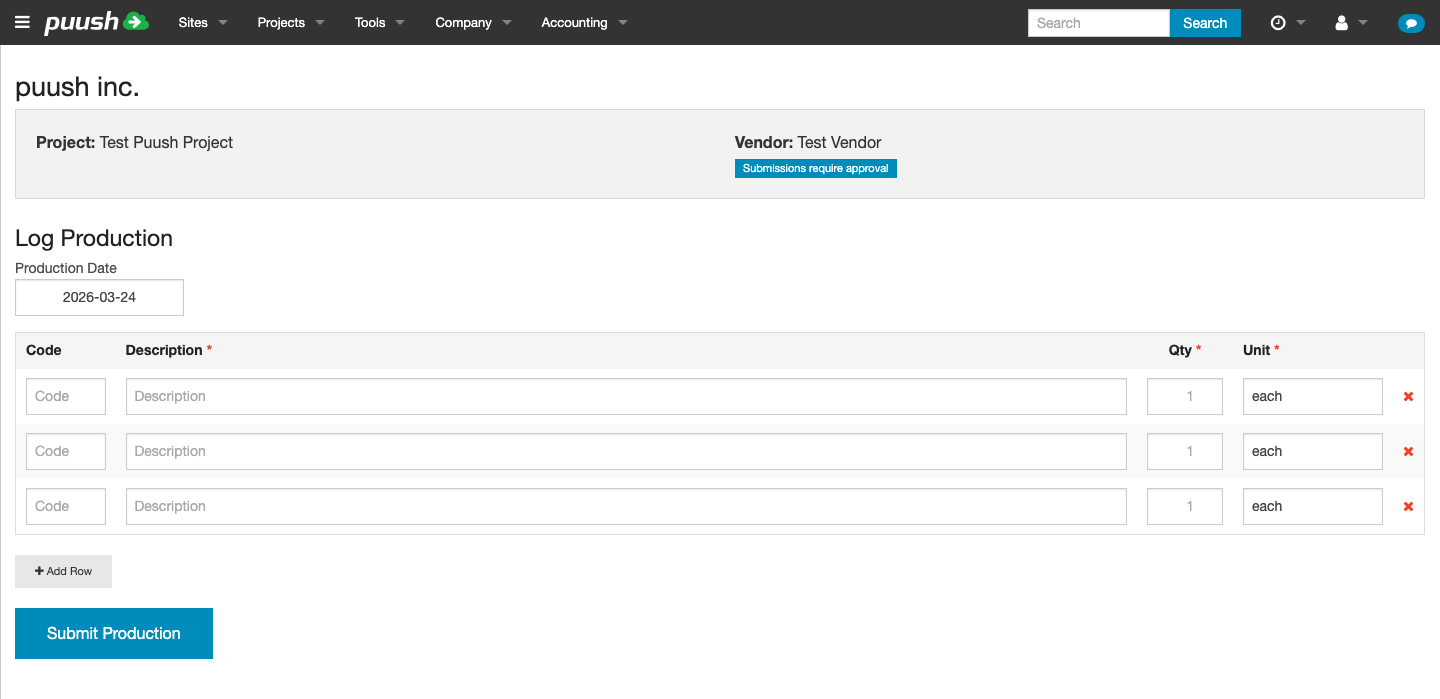
When a vendor opens their share link, they see a public page with:
- The project and site name
- The deliverable name (if scoped)
- Their vendor name
- A production entry table for adding new records
- A list of their previously submitted records
The vendor page does not require login and shows only the information relevant to that vendor's scope.
Vendor Workflow
Logging Entries
Vendors use the same bulk entry form as internal users:
- Fill in code, description, quantity, unit, and production date for each row.
- Add more rows with the + button.
- Click Save to submit all entries.
If the rate card has matching codes, the vendor's code field will autocomplete with available options.
Editing and Deleting Entries
Vendors can edit or delete their own entries only if the entries have not yet been approved. Once an entry is approved (either manually or auto-approved), the vendor can no longer modify it.
Duplicate Detection
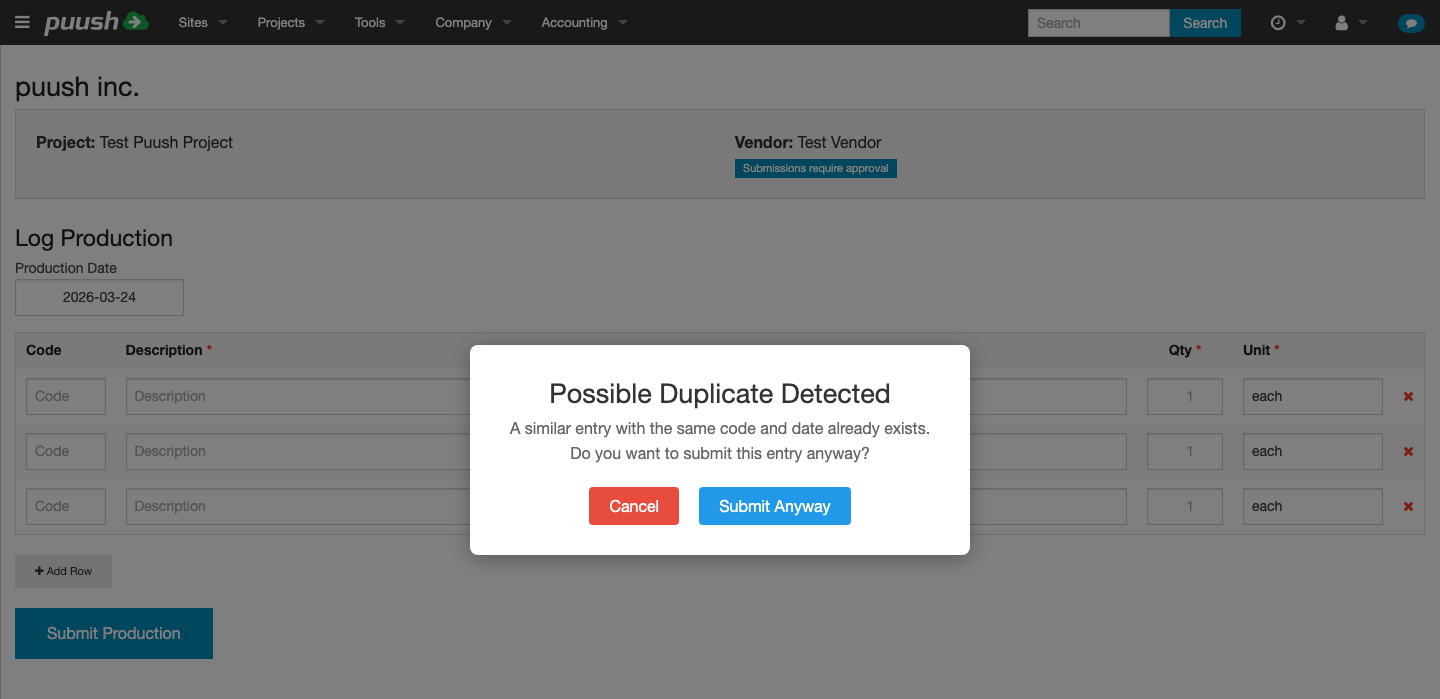
If a vendor submits a record that appears to be a duplicate (same code, description, quantity, unit, and date as an existing record), they are prompted to confirm before the duplicate is created. This helps prevent accidental double-entries.
You don't need a share link to assign production to a vendor. When adding or editing a production record, you can select a vendor directly from the Vendor dropdown in the form.
Approving Vendor Submissions
When a share link is configured to require approval, vendor submissions appear as Pending in your production table. See Approving Production for details on how to review, approve, and reject submissions.