Data Notifications
Data Notifications let you create custom alerts based on attribute values. Receive a notification when a report attribute is set to, exceeds, or falls below a specific value.
Creating a Data Notification
- Go to Settings.
- Scroll to the Notifications section.
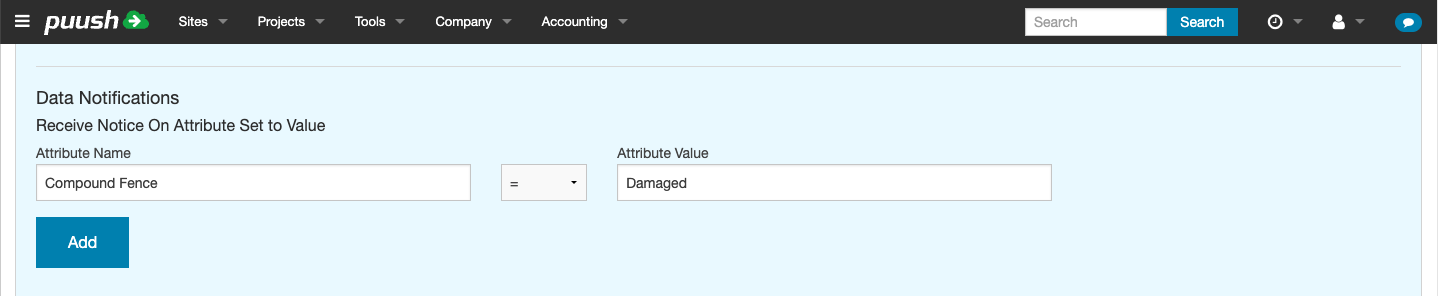
- Under Data Notifications, you will see existing rules and a form to add new ones.
- In the Attribute Name field, type or select the attribute you want to monitor. The field autocompletes from your available report attributes.
- Choose a comparison operator: < (less than), = (equals), or > (greater than).
- Enter the Value to compare against.
- Click Add.
Examples
- Temperature = Critical — notified when the Temperature attribute is set to "Critical"
- Concrete PSI < 3000 — notified when Concrete PSI falls below 3000
- Headcount > 50 — notified when Headcount exceeds 50
Viewing and Deleting Rules
Your existing rules appear above the form, displayed as "Attribute operator value" entries.
To delete a rule, click the red X icon next to it.
How It Works
When a report is submitted or updated, Puush checks attribute values against your notification rules. If a match is found, you receive a notification. Multiple rules on the same attribute are evaluated independently.
Notifications are delivered via in-app message, plus email or SMS depending on your delivery channel settings.