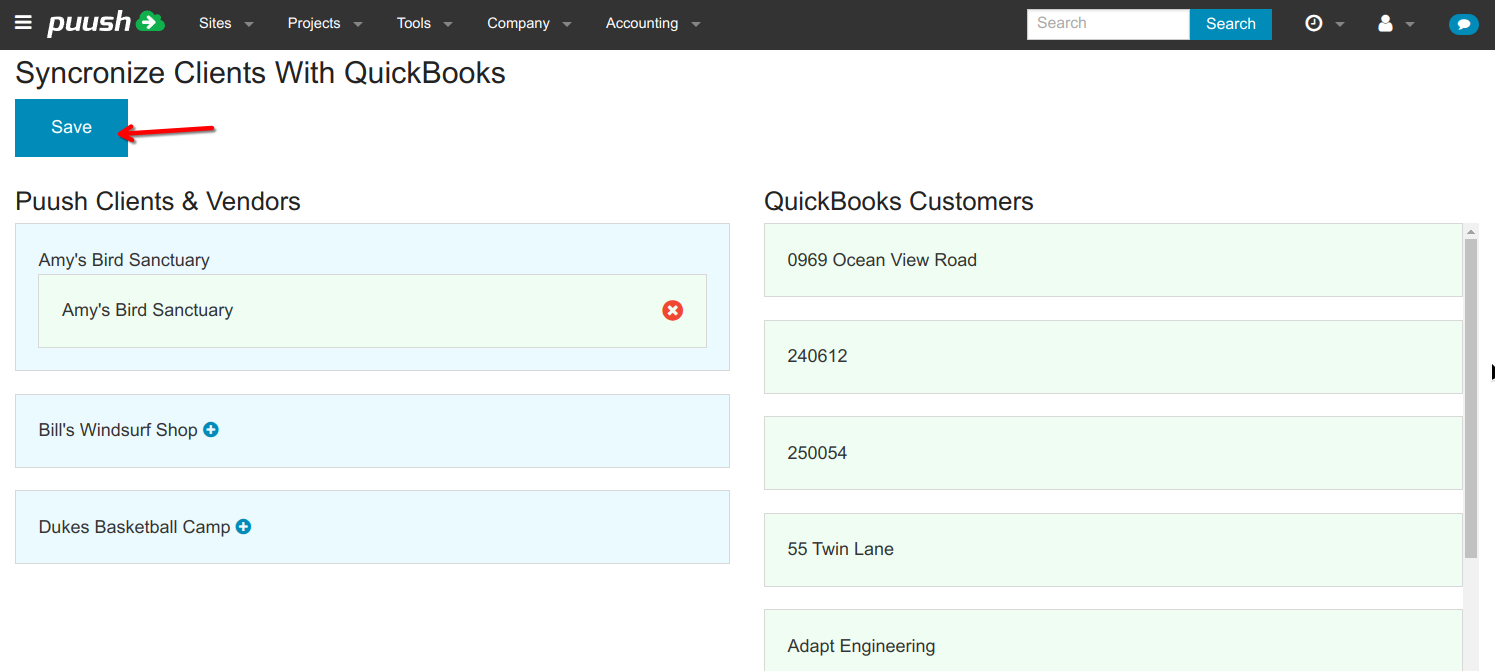
Syncronize Clients & Vendors with QuickBooks Customers
- Navigate from the top menu to "Accounting -> Overview". Expand the "Clients & Vendors" section and hit the "Sync Clients With QuickBooks" button.
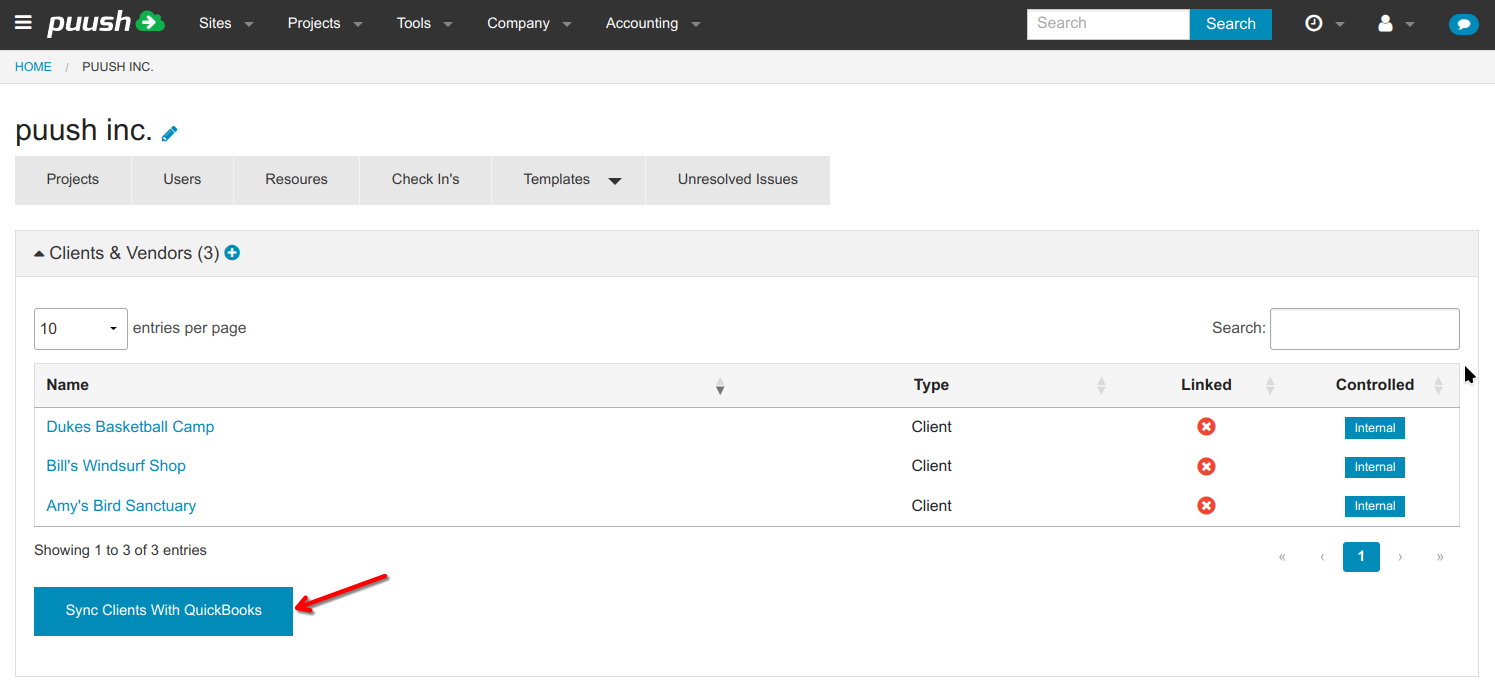
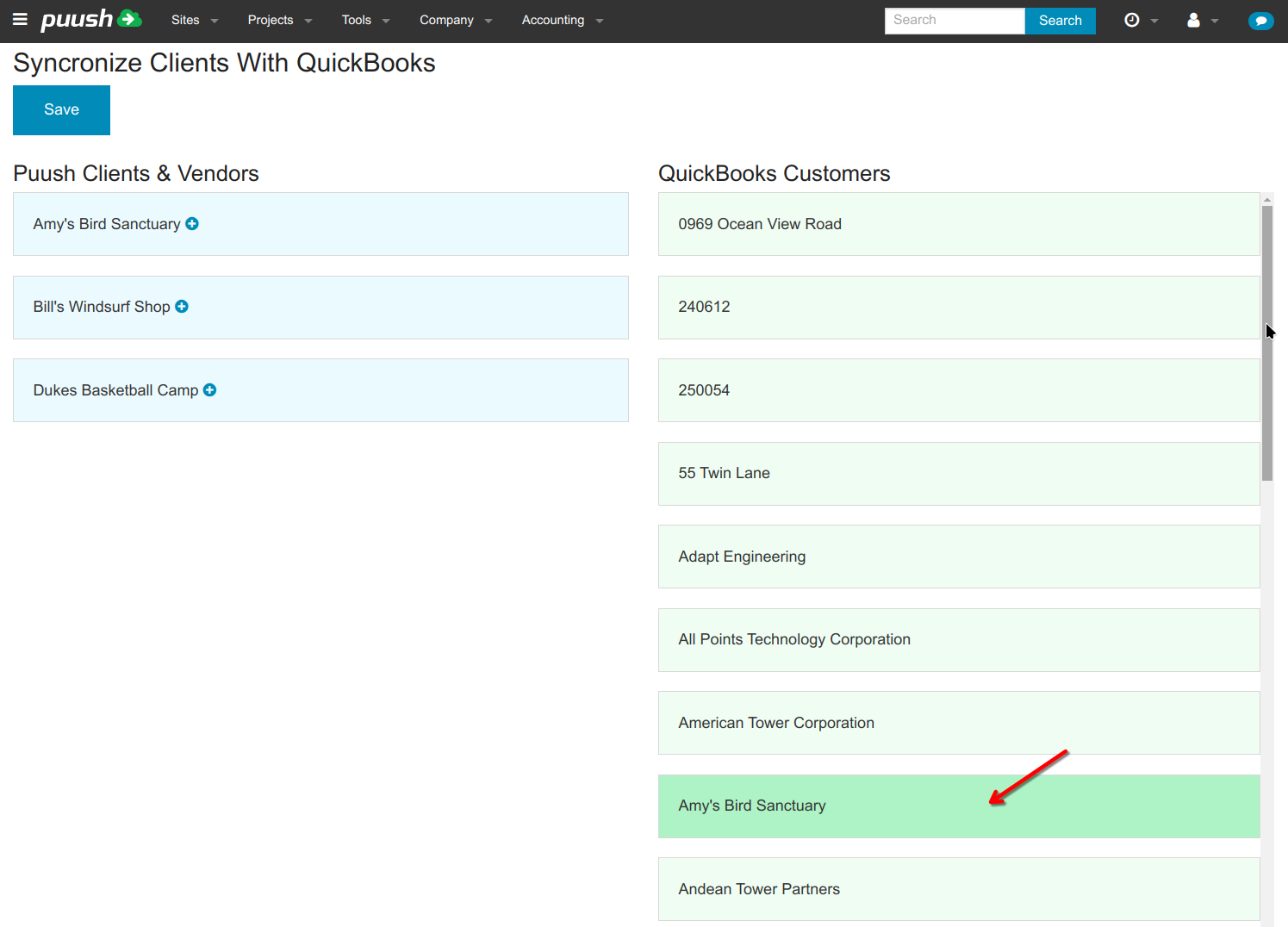
- You will see your Puush clients & vendors listed in the left column in blue, and QuickBooks customers in the right column in green. To match a customer with a Puush client, click on the customer on the right to highlight it.
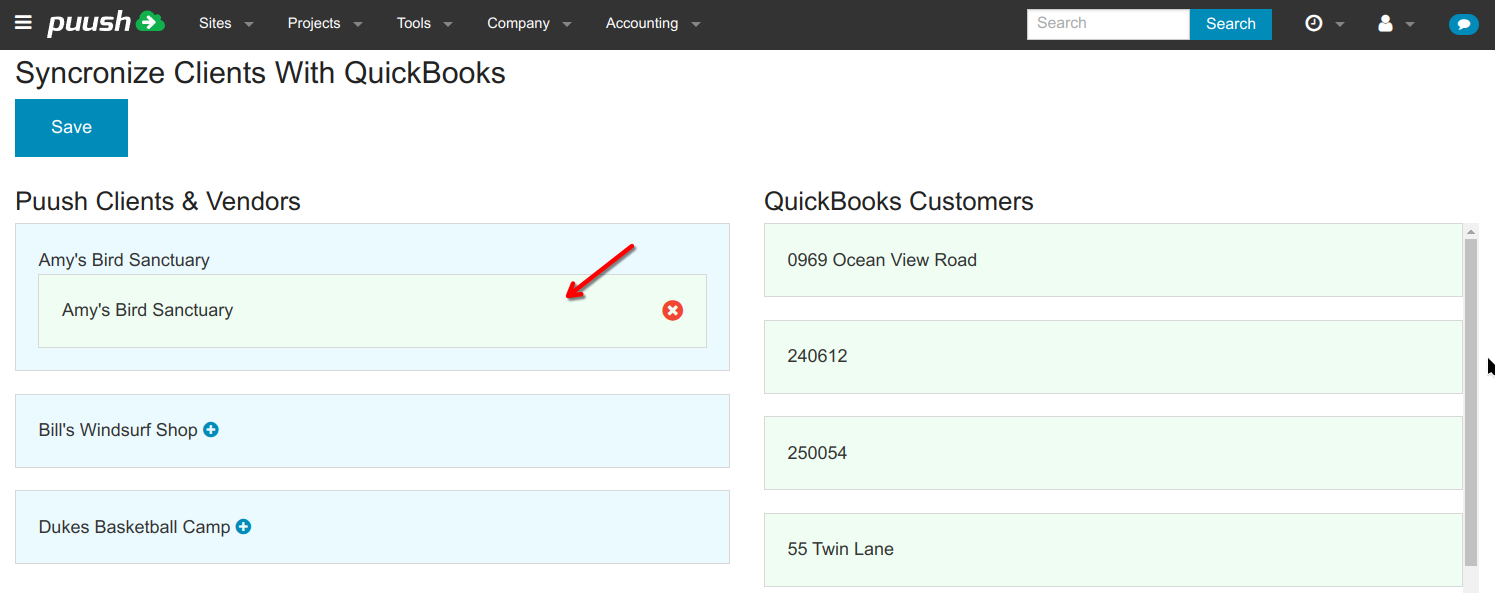
- Next click on the client or vendor to associate it with. You will see the Customer box moved into the selected client.
- If there is no customer created that matches your client, click on the + icon to create a new customer in QuickBooks.
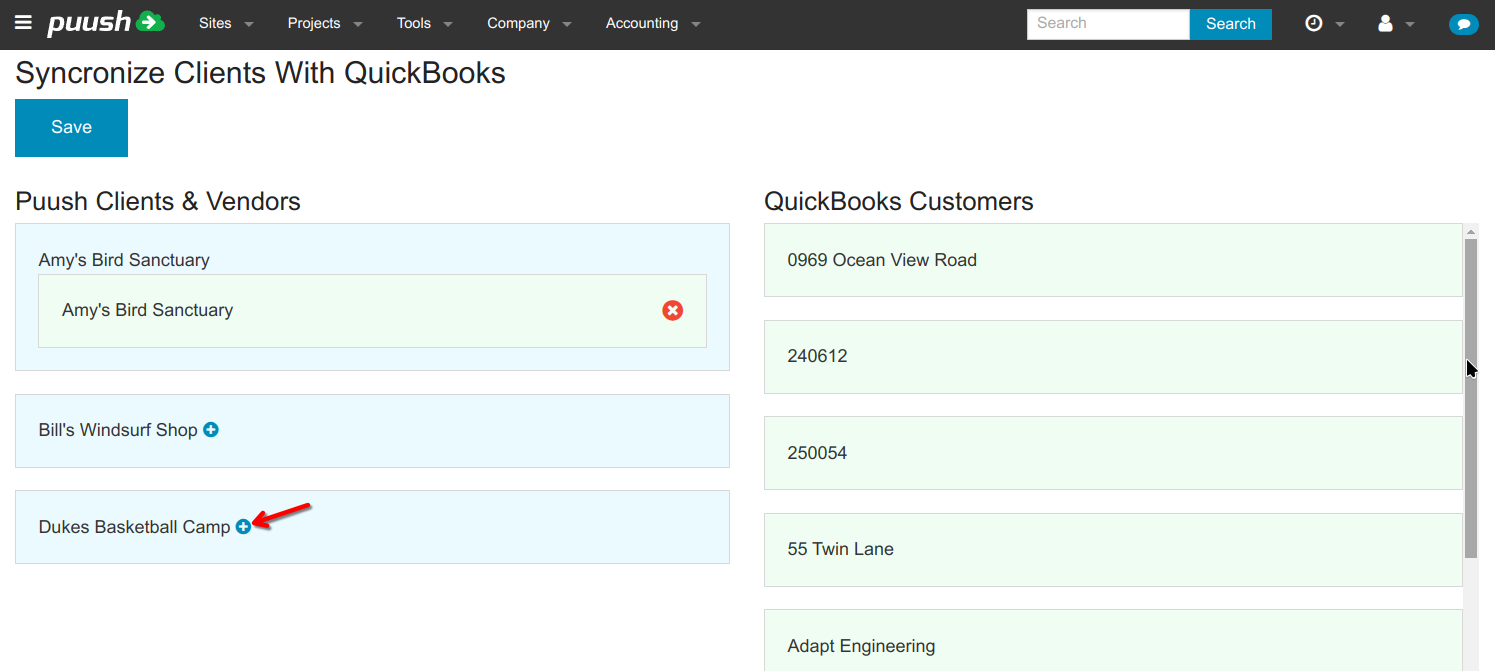
- A new green customer box will be created and added to the client.
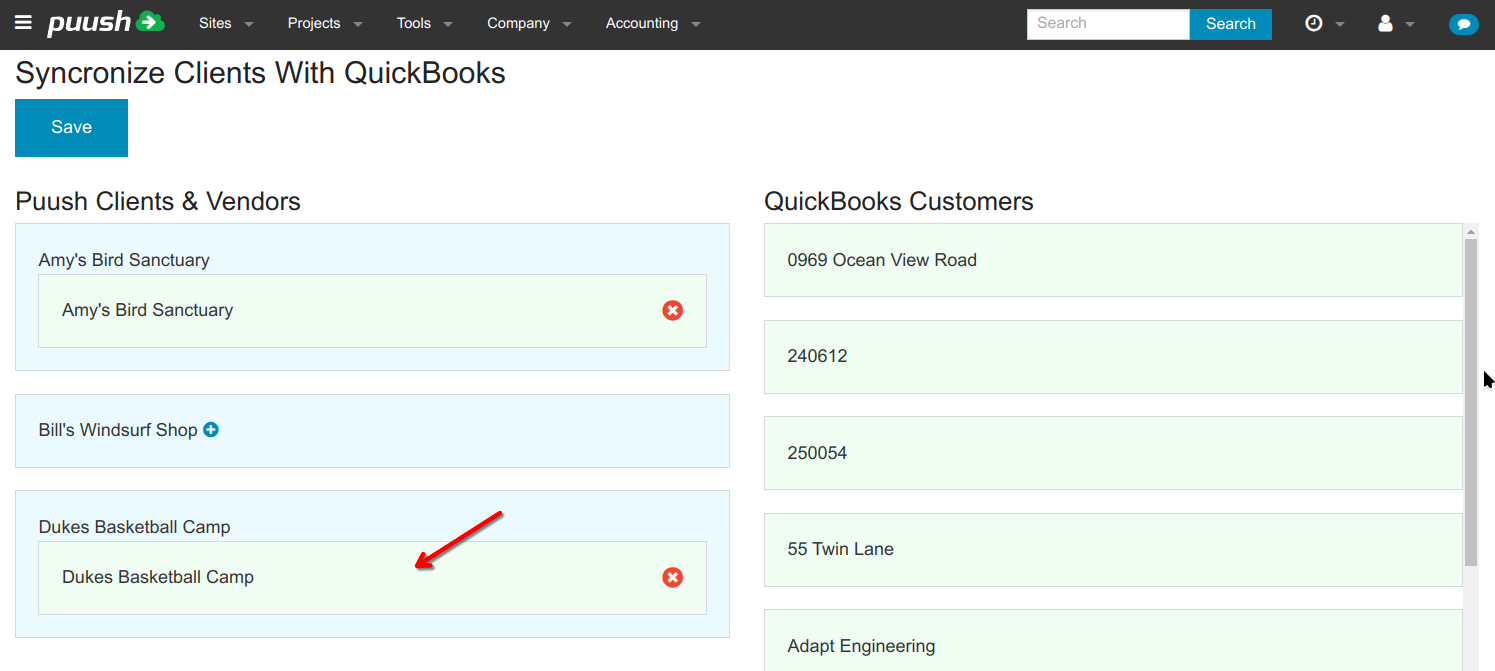
- Click "Save" at the top of the page to save the connections and exit the synchronization screen.